Download
While the software (both the Windows desktop app and the Android mobile app) is offered completely free of charge, users are warmly encouraged to consider making a donation.
Your support helps sustain the development, maintenance, and improvement of the project.
Every contribution, no matter the size, makes a difference.
Thank you for supporting the developer!
Complete Your donation
Please choose a method below to donate using Binance Pay.
Option 1: Use ID (donate using Binance)
1. Open your Binance App & go to the [Pay] section.
2. Tap [Send].
3. Enter the BinanceID below.
4. Enter the Amount & choose as cryptocurrency : USDT .
5. Confirm the payment.
823329398
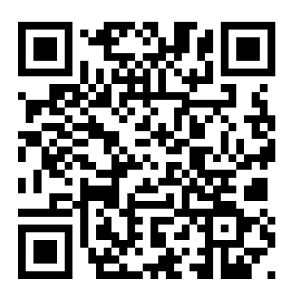
Option 2: Scan QR Code (donate using Binance or other Wallets)
1. Open your Binance App & go to the [Pay] section.
2. Tap the [Scan] icon (usually top right).
3. Scan the QR codes below.
4. Verify recipient & amount, then confirm payment.
USDT Etherum (ETH ERC20)
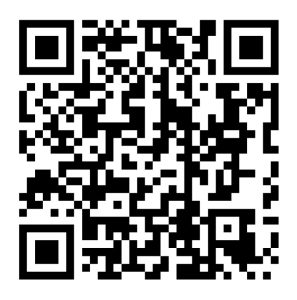
USDT Tron (TRX TRC20)

Download both the Windows Desktop and Android apps.
Why isn’t VGT on the Google Play Store?
We’d love for VGT to be on the Play Store for easier installation! However, current Google Play Developer policies prevent developers located in Madagascar from registering and publishing apps at this time.
Rest assured, downloading and installing the APK directly from our official source is safe. We value your trust and hope Google’s policies evolve to allow global developer participation soon! In the meantime, please follow the manual installation steps carefully.
Install the Android app
Install VGT App on Android
Follow these steps to manually install the .apk file. The apk file and the desktop exe files are in the compressed file donwloaded. If you have downloaded them with your PC, after uncompressing, you have to copy the apk file to your phone and put it in your Downloads folder.
If you have downloaded the compressed file containing the apps using your phone, you have to uncompress first the downloaded file.
Security Warning!
Installing apps from outside the Google Play Store (“sideloading”) requires enabling “Unknown Sources” or granting specific install permissions. While necessary for this installation, be aware that this setting can make your device more vulnerable if you download apps from untrusted websites. Only install APKs from sources you trust (like directly from us!). Remember to potentially disable this setting again after installation if you are concerned.
Step 1: Download the APK File
First, download the latest VGT application file onto your Android device:
Step 2: Allow Installation from Unknown Sources
Android protects you by blocking installations from outside the Play Store by default. You need to grant permission.
The exact steps vary slightly depending on your Android version and manufacturer, but generally involve:
- Open your device’s Settings app.
- Navigate to “Apps”, “Security”, “Biometrics and security”, or similar sections.
- Look for an option like “Install unknown apps”, “Install apps from external sources”, or “Special app access”.
- You might need to select the specific app you used to download the file (e.g., Chrome, Firefox, or your Files app).
- Find the browser or file manager you used and toggle the switch to “Allow from this source”.
- Alternatively (Older Android): You might find a single toggle under “Security” called “Unknown sources”. Enable this (you might see a warning).
If you have trouble finding this setting, try searching within your Settings app for “unknown” or “install”.
Step 3: Locate and Install the APK
- Open your device’s “Files” app (or “My Files”, “Downloads”, or any file manager app).
- Navigate to your “Downloads” folder (or wherever your browser saved the file).
- Find the downloaded apkl file .
- Tap on the file to start the installation process.
- You might see a prompt asking for confirmation. Review the permissions (it should typically only need Internet access for basic operation, unless you added plugins requiring more) and tap “Install”.
- Wait for the installation to complete.
Step 4: Launch the App!
Once installed, you should find the “VGT” app icon in your app drawer or on your home screen. Tap it to launch!
Optional Security Step: After confirming the app works, you may want to go back into your Settings and disable the “Install unknown apps” permission for the browser/file manager you used, just to maintain standard security levels.
Troubleshooting
- “App not installed”: Your device might not meet the minimum Android version requirements, the APK file might be corrupted (try downloading again), or you might not have enough storage space.
- Can’t find setting: Search settings for “unknown”, “install apps”, or “special access”. Consult your specific phone manufacturer’s support guides if needed.
- Security warnings: Android will warn you about installing from unknown sources. This is normal. Only proceed if you trust the source (us!).